

A donate button is the simplest fundraising tool you can add to a website, and one of the most effective when it opens a real donation box instead of a plain link. Here is how to add one to any website with GivePilot, step by step.
Before you start
- A GivePilot account. The Free plan needs no card.
- A payment account: Stripe, PayPal or Square.
- Access to edit your website.
When you sign up, setup asks for your organization’s name, your reply-to email, your currency, your amounts and colour, then walks you through connecting a payment provider. The last step gives you the code for your site.
Add it to Wix
- Install GivePilot from the Wix App Market.
- Open your site in the Wix editor.
- Click Add (+), then App Widgets, then GivePilot, and drag the donation box onto the page.
- Publish your site and open that page once. GivePilot shows the box as live.
Prefer code? Put the box code in an Embed HTML element, or add the button code under Settings, then Custom code, in your Wix dashboard.
Add it to Shopify
- In Shopify, open Online Store, then Themes, and click Customize.
- Open the page where the box should go, add a section and choose Custom Liquid.
- Paste the donation box code from your console’s Installation page and save.
- For a donate button on every page, open Edit code from the theme’s menu, open theme.liquid and paste the button code just before the closing head tag.
Add it to WordPress, Squarespace, Webflow or any site
Your console’s Installation page has two codes with your site key already filled in.
A donate button on every page
Paste this into your site’s header, just before the closing head tag. In WordPress that is usually a header code setting in your theme or a header-and-footer plugin; in Squarespace it is Code Injection; in Webflow it is the site’s custom code settings.
<script async src="https://givepilot.dudelemon.cloud/donate/donate.js" data-site="YOUR_SITE_KEY" data-api="https://givepilot.dudelemon.cloud/api/don/v1"></script>A donation box inside a page
Paste this where the box should appear, in an HTML or embed block:
<div data-givepilot="donate"></div>
<script async src="https://givepilot.dudelemon.cloud/donate/donate.js" data-site="YOUR_SITE_KEY" data-api="https://givepilot.dudelemon.cloud/api/don/v1"></script>
Every campaign has its own embed code too, so a campaign box with its goal and progress can sit on any page.
Check it is working
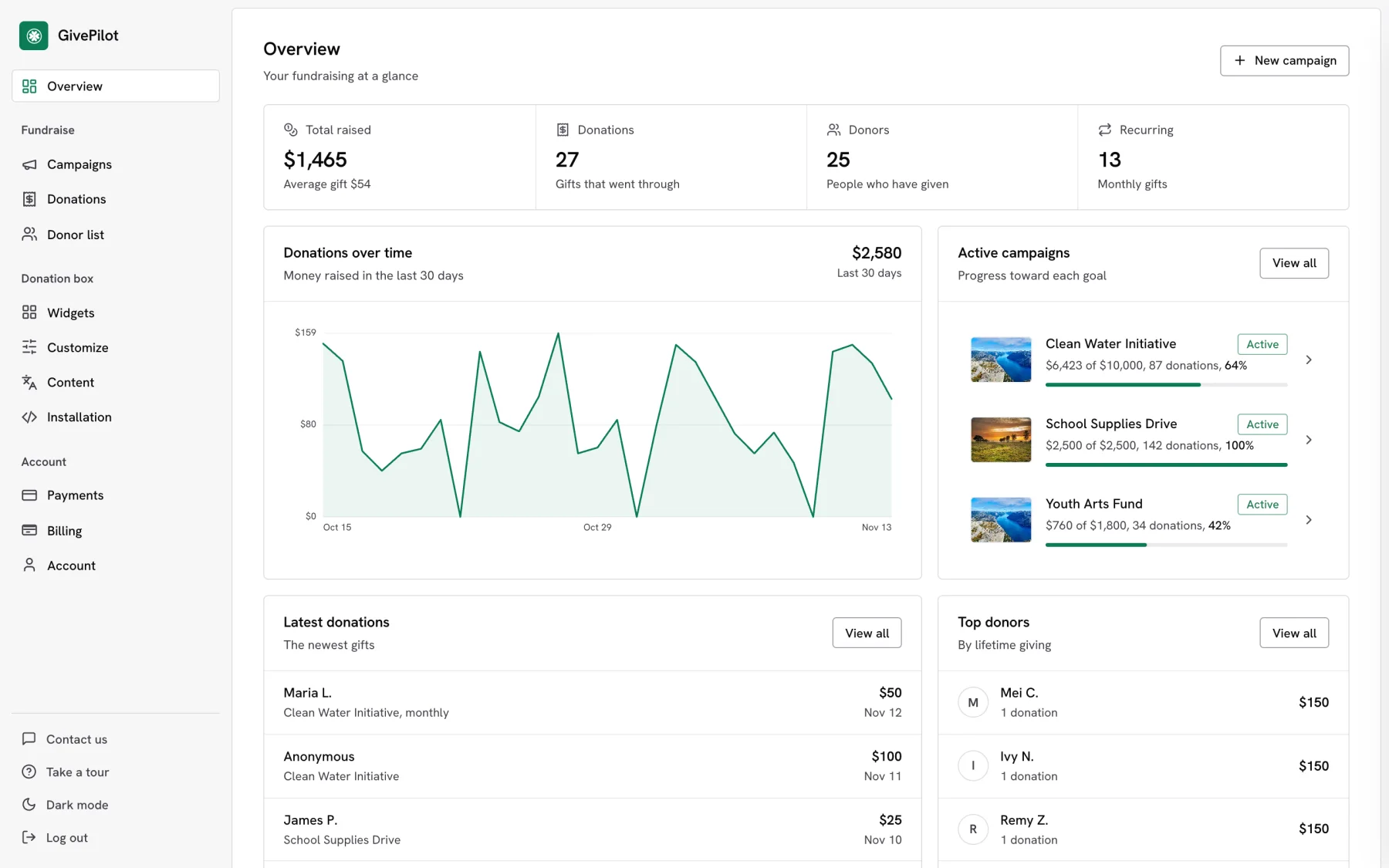
Open the page on your live site. GivePilot watches for the box loading and ticks “Put the donation box on your site” off on your console’s overview. Then give a small gift yourself, or use your provider’s test mode, and watch it arrive in Donations along with its receipt.
Make the button yours
- Choose your colour, a light or dark theme and one of three styles.
- Change the button label and every line of text in the box, in any language.
- Set your preset amounts, a custom amount and a minimum gift.

