

Someone lands on your cause page, reads your story and decides to help. The online donation form should be right there, ready for that decision. GivePilot puts the donation box in your existing website and lets you choose the amounts, colour and words donors see.
This guide takes you from an empty page to a working form. It also gives you a launch checklist so the first real donor has a clear path from your story to a receipt.
Choose where the form belongs
The strongest starting place is a dedicated Donate page linked from your main navigation. Put a short, specific explanation above the form: what gifts support and what the donor can do today. A project or appeal page can carry its own campaign box as well.
| Place on your site | What visitors need | GivePilot option |
|---|---|---|
| Donate page | A clear reason to give and a form in view | Donation box |
| Every page | A visible route back to giving | Floating donate button |
| Specific appeal | Story, goal, progress and a way to give | Campaign box |
Use the form where the visitor has enough context to decide. The same organization can use all three placements.
A donation form is easier to use when the question and the action sit together. If your story is on one page and the form is somewhere else, add a direct route to that form beside the story. GivePilot’s floating donate button can remain available across the site.
Set amounts, words and colour
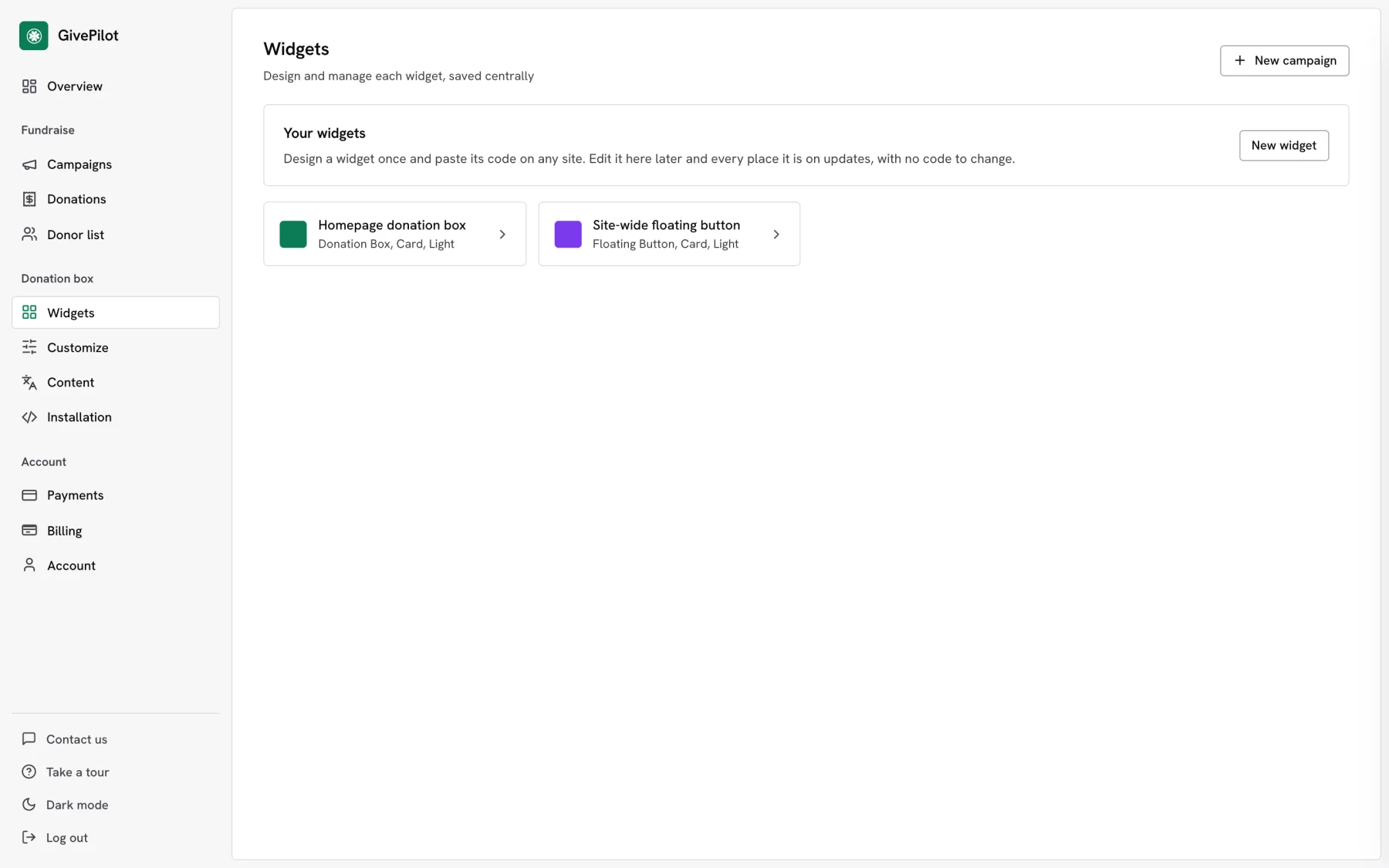
In GivePilot, onboarding asks for your organization name, reply-to email, currency, suggested amounts and colour. The form preview updates as you work. Later, the widget settings let you change the button label and the text donors see. Use your own language to explain the impact of a gift.
- Suggested amounts: make them plausible for your audience and include a custom amount for donors who have another figure in mind.
- Donation frequency: a one-time choice suits every plan. The monthly option is available through Stripe on Grassroot.
- Visual fit: use a colour and style that sit comfortably with your site, then read the form on a phone before publishing.
- Clear language: tell donors what happens when they continue to the connected payment provider.
GivePilot offers a Free plan for your first five donations, with the donation box and campaigns included. The pricing page shows the current plans and which monthly-giving features are available.
Connect the account that receives the money
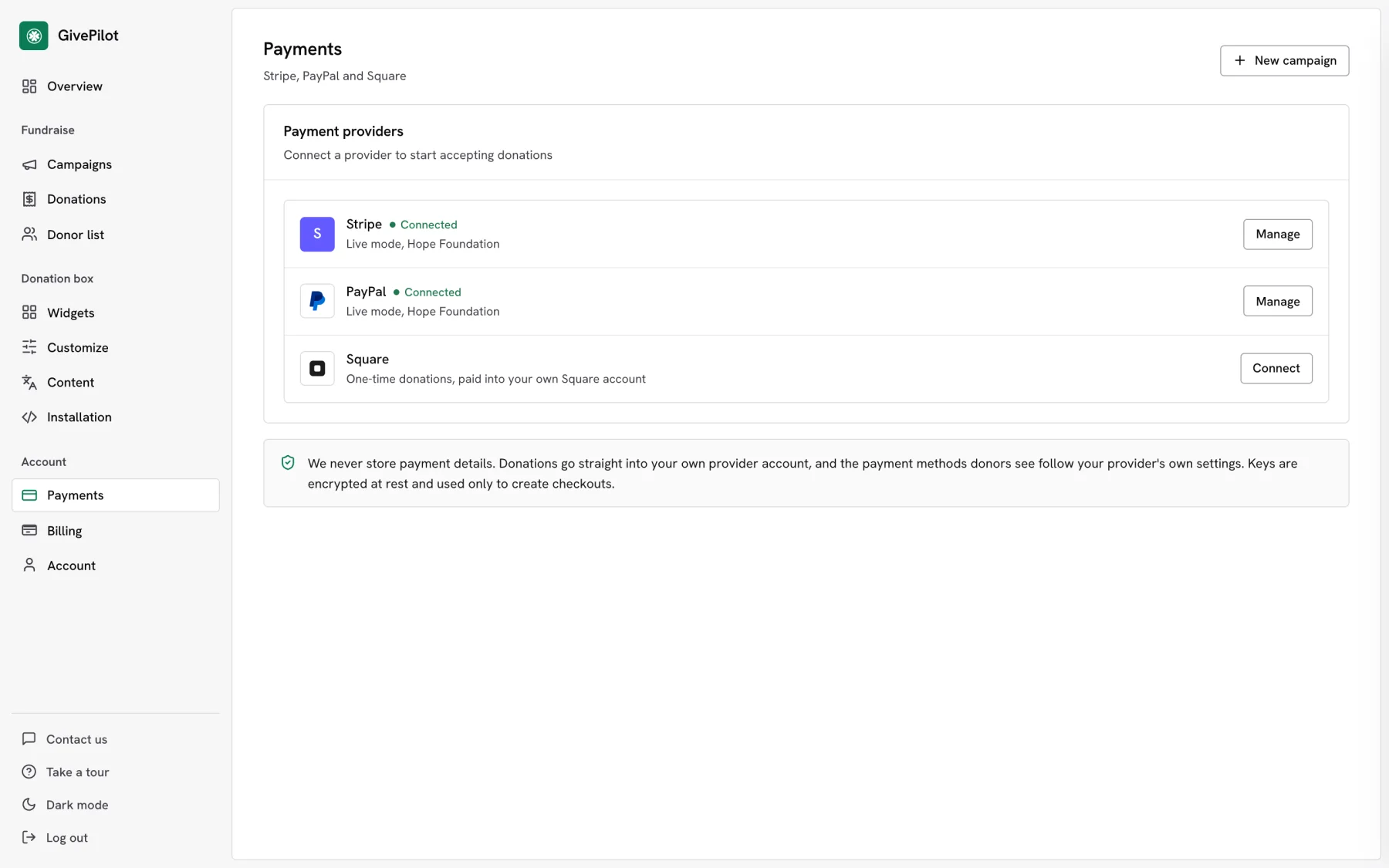
Connect Stripe, PayPal or Square in the GivePilot console. Your organization uses its own account with the provider. The payment details are handled in that provider’s secure checkout, and the donation reaches your provider account.
Choose the provider your team can maintain and your donors know. You can connect more than one. For monthly giving, connect Stripe and use the Grassroot plan. The donor tools then send a receipt for each renewal and let the donor manage the gift through a portal.
Put the donation form on your site
GivePilot gives you the installation code with your own site key in the console. The route depends on the website you already use:
- Wix: add GivePilot from the Wix integration, place its widget in the editor and publish.
- Shopify: follow the Shopify guide to add the box to a page section.
- WordPress, Squarespace, Webflow or a custom site: use an HTML or embed block with the two lines from Installation. The integration pages show where to paste them, including the Webflow steps and the steps for a site you built yourself.
The box needs a place on the page and the GivePilot script. Copy both from the console, since the script includes your site key. For a step-by-step platform walkthrough, read how to add a donate button and box to your website.
Test the whole donor journey before launch
Open the published page on a phone and on a desktop. Read it like someone visiting for the first time. A visible form, working payment flow and useful receipt matter more than a long explanation of your fundraising software. Our list of 12 details the best donation websites share makes a good checklist for that read-through.
- Can a donor find the form from the main navigation and from a relevant story page?
- Do the suggested and custom amounts display correctly in the currency you chose?
- Does the connected provider open the expected checkout?
- After a test or small real gift, does the donation appear in your console?
- Does the receipt show the organization name and a useful reply address?
- Can the team find the donor record and campaign result afterward?
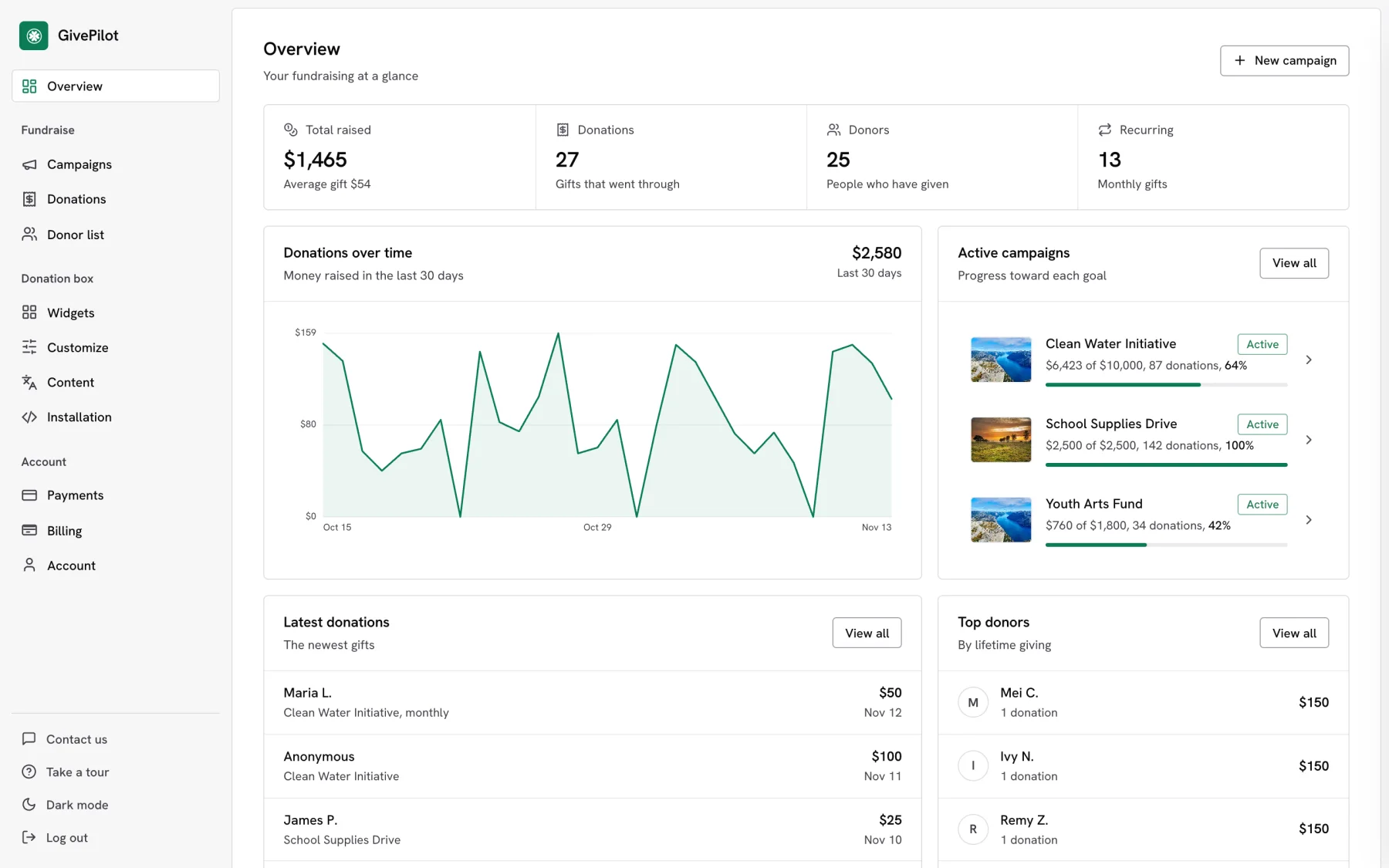
GivePilot’s console keeps donations, donors and campaigns together. The dashboard gives the team a quick view after launch, while campaign updates let supporters see how an appeal is progressing.
Make the next gift easier to find
Once the form works, link to it from your navigation, email signature and campaign pages. Keep the appeal page current and let donors see the outcome of their support. If you want regular giving, offer the monthly choice in the same box and tell supporters what their ongoing gift helps sustain.